Play any track next
Search by title, artist or filename and send a track from your cloud library directly to the next playback position.
Included with every streaming plan
AutoDJ Studio connects your cloud media library directly to the AutoDJ playback queue. Search a track, choose Play Next or drag it into the broadcast timeline—no encoder, desktop player or local computer required.
A different kind of AutoDJ control
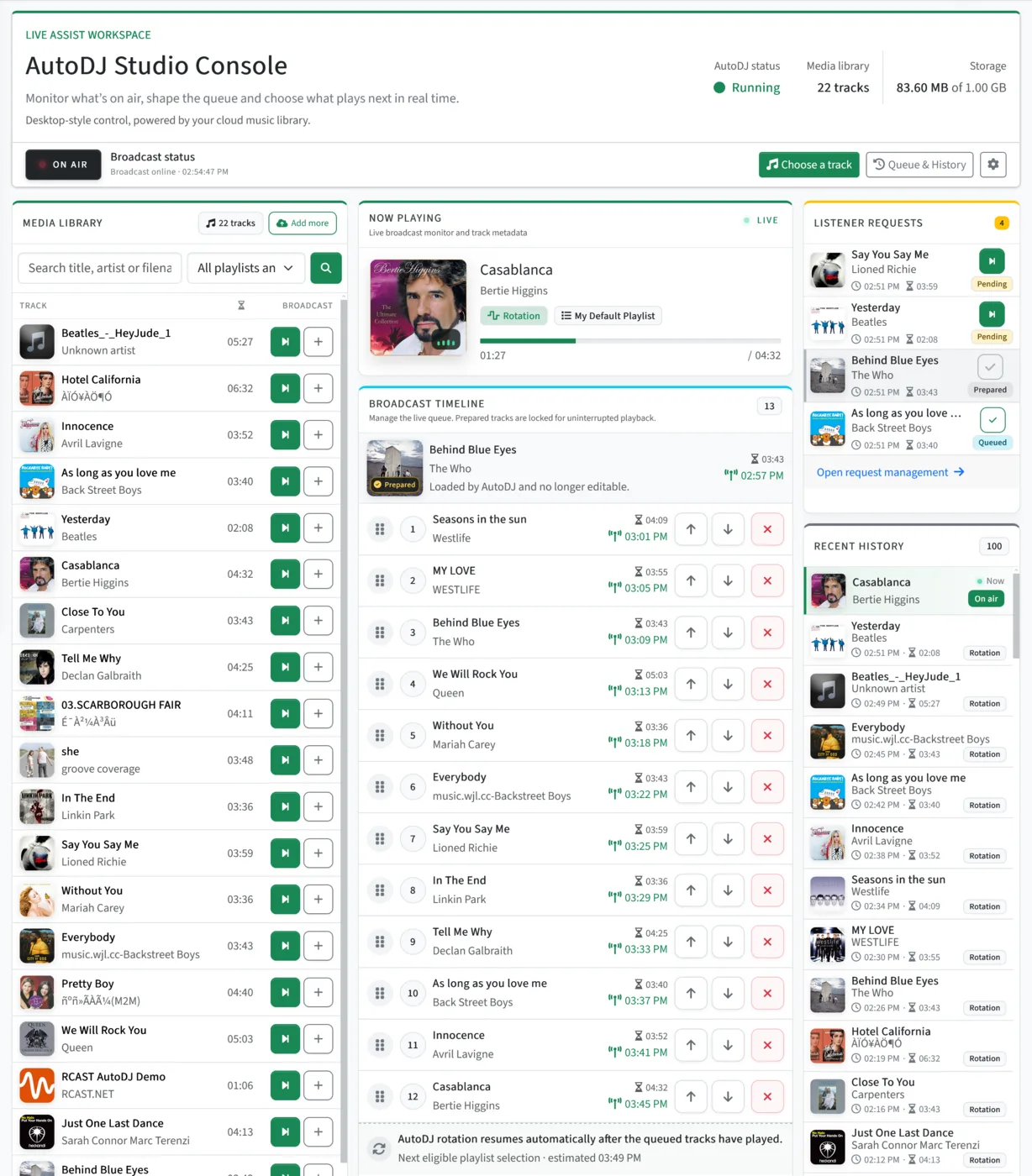
Traditional AutoDJ panels mainly schedule playlists. AutoDJ Studio provides a purpose-built live workspace where the cloud library and the active playback queue work together while your station remains on air.
Search by title, artist or filename and send a track from your cloud library directly to the next playback position.
Drag tracks into a precise position, reorder the editable queue and remove an item before AutoDJ prepares it.
See track durations and estimated on-air times, including the point when normal AutoDJ rotation will resume.
Cloud library to listeners
Your browser sends queue instructions—not an audio stream. AutoDJ reads the selected files from your cloud library, prepares uninterrupted playback and delivers the output through SHOUTcast or Icecast.
Inside AutoDJ Studio
The console monitors the current broadcast and refreshes queue, requests and history as AutoDJ changes state—without reloading the whole workspace.
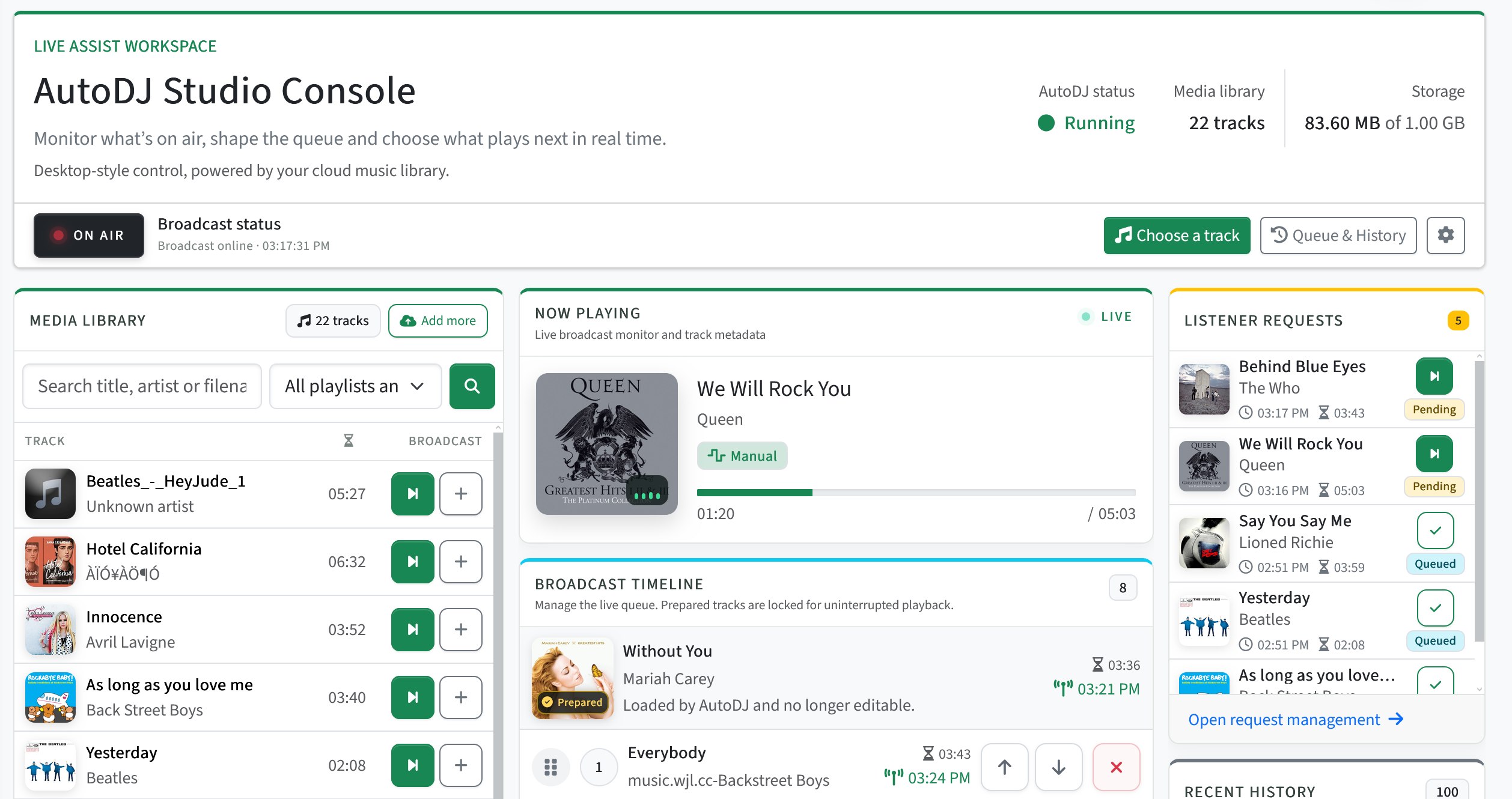
Follow current metadata, artwork, playback progress and broadcast state.
Drag a library track to a specific point or reorder the manual queue.
Send a request to Play Next, queue it normally or mark it handled.
Review recently played tracks and their source alongside the live queue.
No separate add-on
All current Live and AutoDJ streaming plans include AutoDJ Studio. Live plans provide a smaller cloud library for fallback and selected tracks; dedicated AutoDJ plans provide 20–100 GB for stations built around continuous cloud programming.
AutoDJ Studio FAQ
No. Choose a file already stored in your cloud library and AutoDJ Studio places it directly into the AutoDJ queue. No audio is routed through your computer.
The track enters the highest available manual queue position. AutoDJ prepares it for uninterrupted playback after the item already on air.
You can reorder or remove items while they remain in the editable manual queue. Once AutoDJ has prepared an item for playback, it is locked to protect the transition.
No. It is included with every current RadioDJ Live and AutoDJ streaming plan.
Yes. AutoDJ can deliver your programming to either server platform.
Yes. AutoDJ Studio controls cloud playout; you can still connect a compatible encoder whenever a presenter needs to take over live.
See it in action
Open the shared demo or ask us which service fits your station workflow.